> ## Documentation Index
> Fetch the complete documentation index at: https://docs.minimus.io/llms.txt
> Use this file to discover all available pages before exploring further.
# Install minicli
> Install the Minimus command-line tool to manage Image Creator as code and more
The Minimus command-line tool **minicli** allows you to embed your custom-built Minimus images in your CI/CD workflows. To begin, you will need to install minicli locally on your workstation.
To view the minicli installation page, select **Manage > minicli** ([direct link](https://images.minimus.io/manage/minicli)).
* minicli can be installed on macOS or Linux systems.
* Both amd64 and arm64 are supported.
* Choose between direct installation via `curl`, `wget`, or downloading the file and running it locally.
* The relevant installation commands are provided directly in the minicli page ([direct link](https://images.minimus.io/manage/minicli)).
## Authenticate to minicli
Generate a token from the [**tokens** page](/manage/token) in the Minimus console and give it minicli access. Then authenticate using one of the following methods:
**Option 1 — environment variable** (recommended for CI/CD):
```bash theme={null}
export MINICLI_TOKEN={token}
```
**Option 2 — login command** (recommended for local use):
```shellscript theme={null}
echo "{token}" | minicli login
```
All commands require `MINICLI_TOKEN` to be set. If the token is missing, minicli returns an error:
```text wrap theme={null}
Error: Authentication token not found. Please export your token: export MINICLI_TOKEN={token}.
```
## Working with minicli
Once you have minicli installed and authenticated, you can equip your AI agent with minicli skills and get started. See [minicli commands](/enterprise-edition/minicli)
## Troubleshooting
### Apple could not verify "minicli" is free of malware
Minimus is in the process of obtaining Apple developer verification. In the meanwhile, the browser download may attach a hidden quarantine flag that triggers a warning that minicli could not be verified if other commands are performed pre-installation.
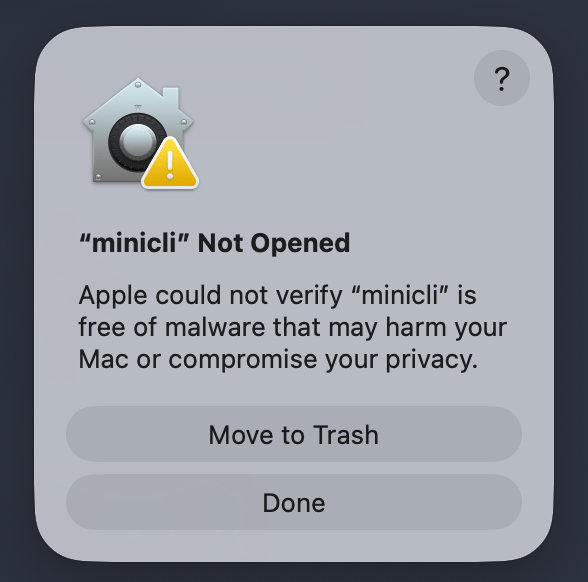 **To fix the problem**: Download the minicli installation package and follow the instructions on the minicli installation page in the Minimus console ([direct link](https://images.minimus.io/manage/minicli)) without running any other commands in between. For example, avoid `chmod +x`.