> ## Documentation Index
> Fetch the complete documentation index at: https://docs.minimus.io/llms.txt
> Use this file to discover all available pages before exploring further.
# Sync with JFrog Artifactory
> Set up pull through to mirror Minimus images to JFrog Artifactory
If your organization uses the JFrog Artifactory as the source of truth, you can set up a pull-through cache for your Minimus container images. This option allows you to benefit from the Minimus security advantage while keeping your current processes.
Refer to JFrog's Artifactory guide for [remote repositories](https://jfrog.com/help/r/jfrog-artifactory-documentation/configure-a-remote-repository) for further information.
## Prerequisites
1. JFrog Artifactory administrative privileges with an Artifactory instance
2. Access to Docker or Podman to execute an image pull. This may be done locally or from a virtual machine that has a routable network path to your Artifactory instance.
## Set up a remote repository in Artifactory
In this step, we will set up the Minimus registry as a remote repository in JFrog Artifactory to enable pull through.
1. Log into your JFrog Artifactory console.
2. Navigate to **Administration > Repositories** (The URL will look like this `https://***.jfrog.io/ui/admin/repositories` ).
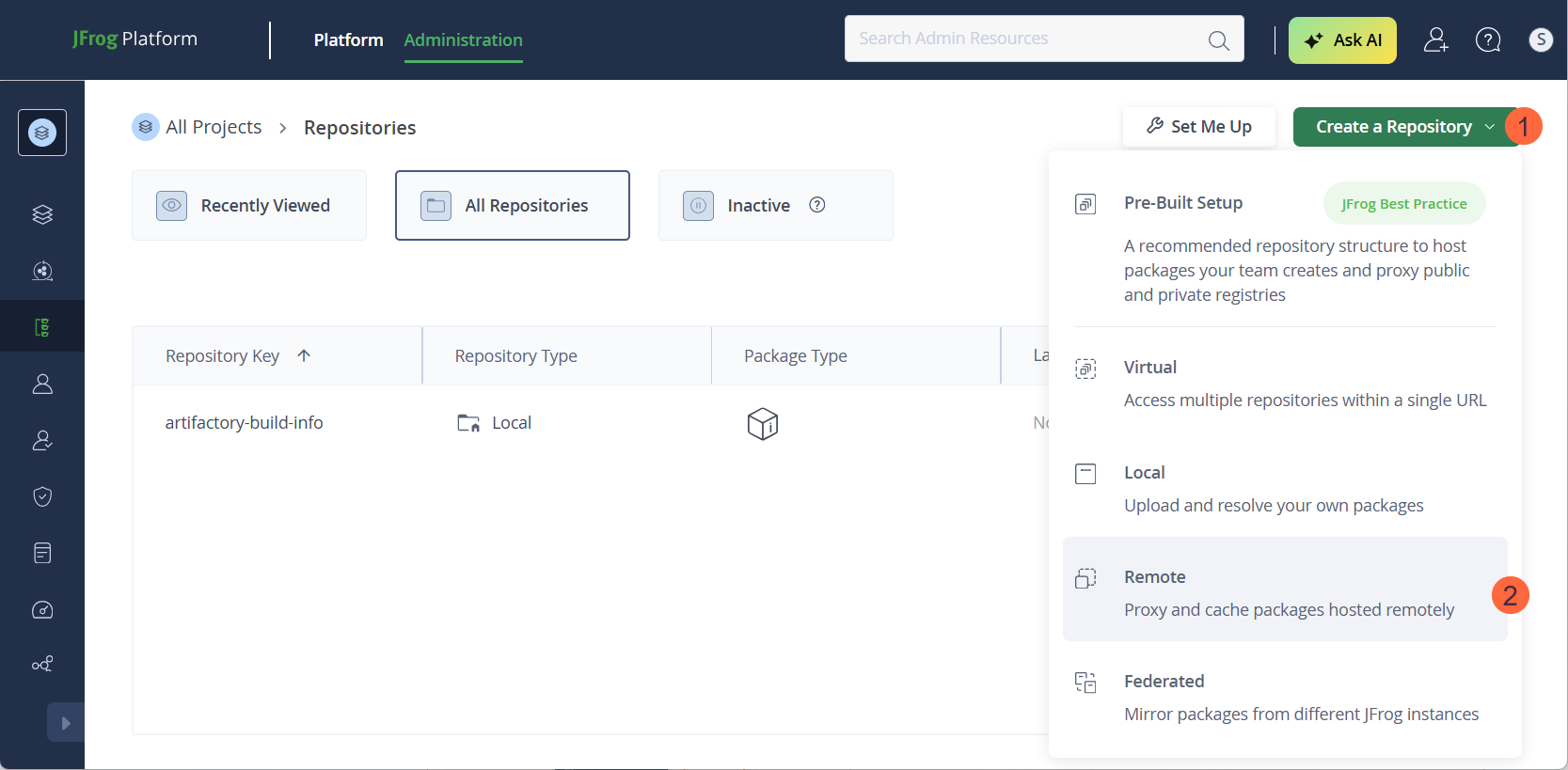
3. Select **Create a Repository > Remote**.
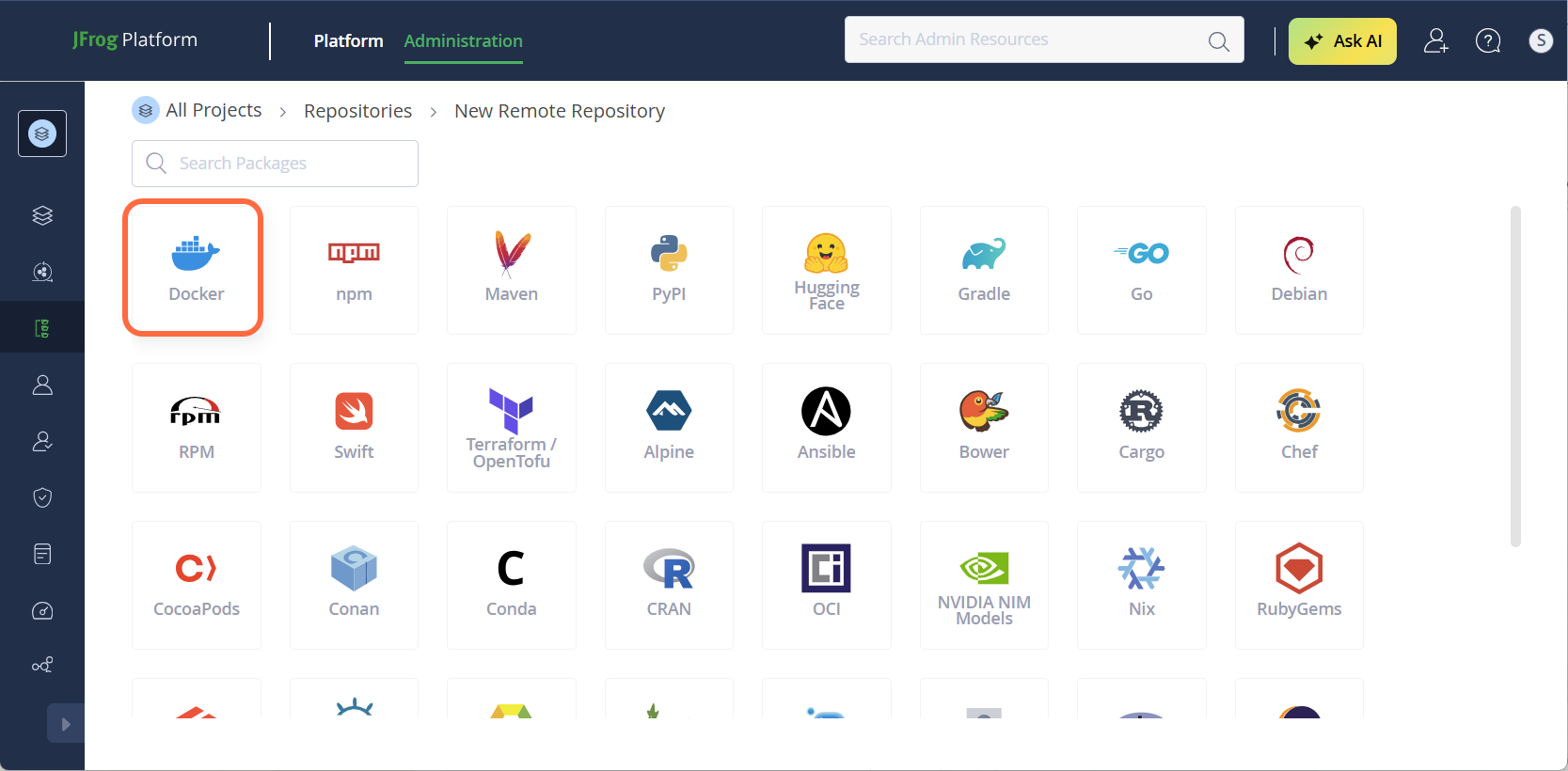
 4. Select **Docker**.
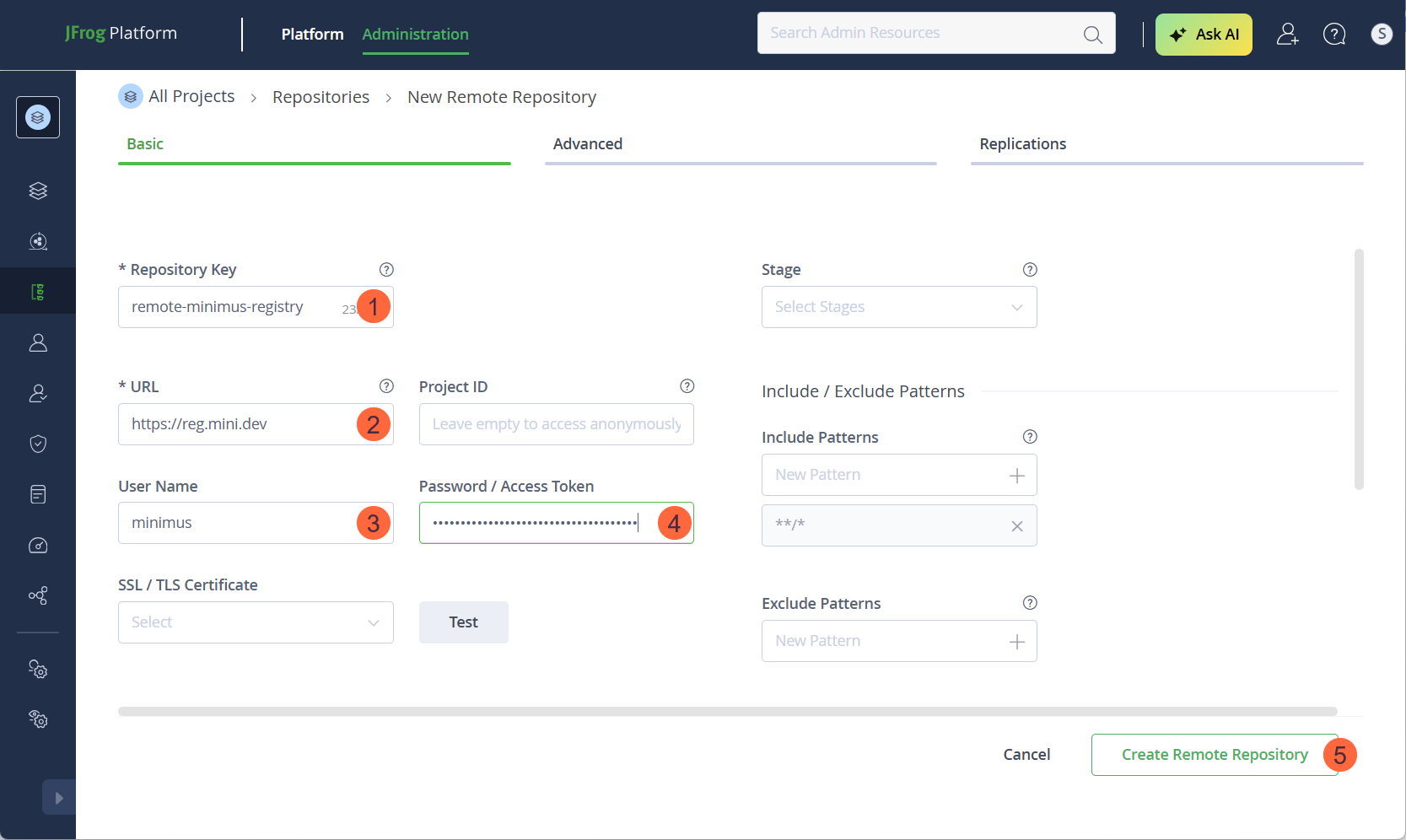
 5. Fill in the form:
1. **Repository Key**: Name your remote-repository, for example, `remote-minimus-registry`.
2. **URL**: Type in `https://reg.mini.dev`.
3. **User Name**: Type in `minimus` (The username for authenticating to the Minimus registry)
4. **Password / Access Token**: Paste your Minimus token as the value. (You can use this [direct link](https://images.minimus.io/manage/tokens) to fetch your Minimus token).
5. For all other fields, you can keep the defaults but we recommend that you align with your organizational policies.
6. Click **Create Remote Repository** to complete the form.
5. Fill in the form:
1. **Repository Key**: Name your remote-repository, for example, `remote-minimus-registry`.
2. **URL**: Type in `https://reg.mini.dev`.
3. **User Name**: Type in `minimus` (The username for authenticating to the Minimus registry)
4. **Password / Access Token**: Paste your Minimus token as the value. (You can use this [direct link](https://images.minimus.io/manage/tokens) to fetch your Minimus token).
5. For all other fields, you can keep the defaults but we recommend that you align with your organizational policies.
6. Click **Create Remote Repository** to complete the form.
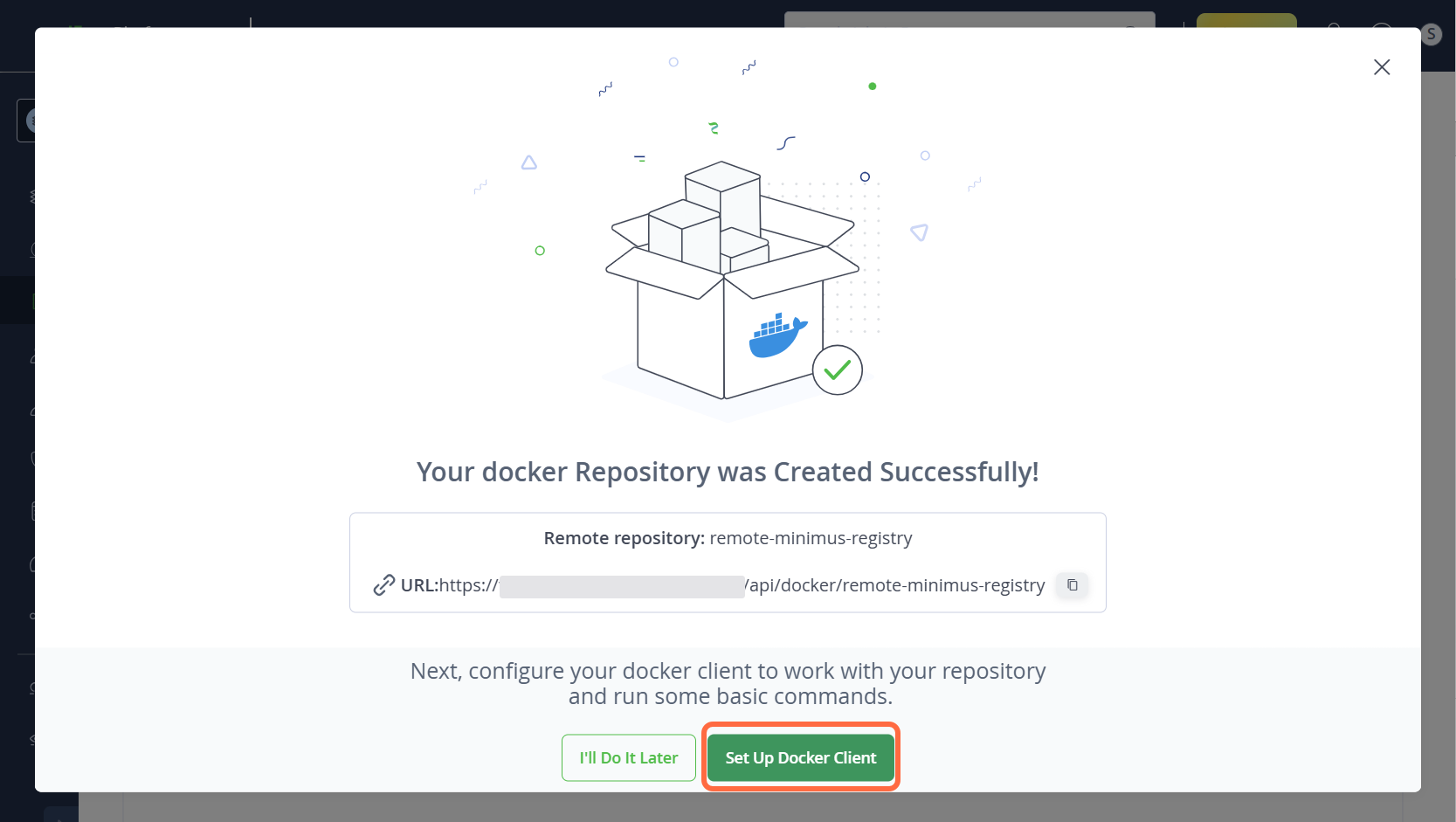
 7. You should see the following success window. Select the option **Set Up Docker Client** to continue.
 ## Pulling Minimus images into Artifactory
Now that you've set up the Minimus registry as a remote repository in Artifactory, you are ready to pull Minimus images into your JFrog Artifactory instance.
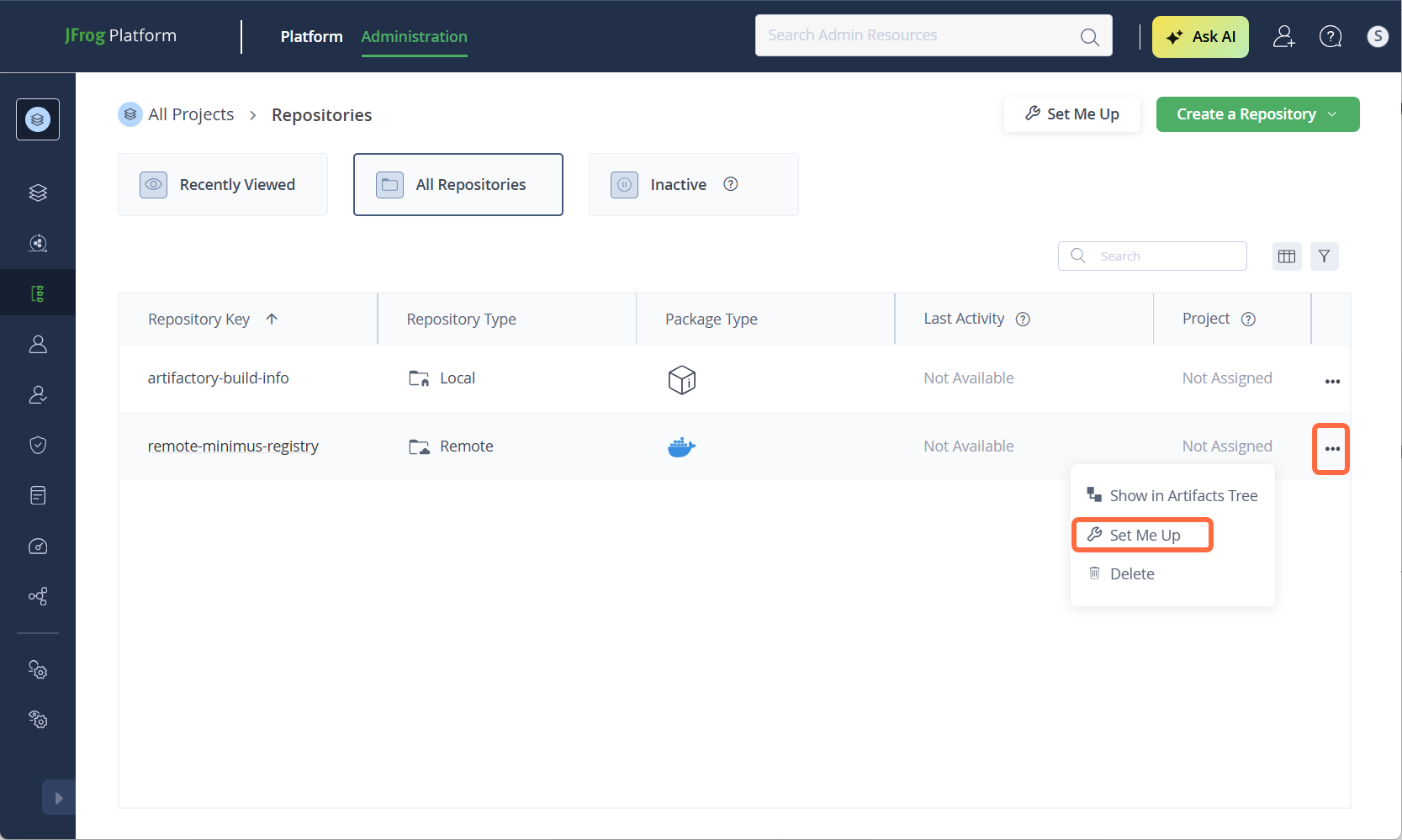
1. If you didn't select **Set Up Docker Client** in the previous step, you can navigate to it directly:
1. Select **Repositories** from the left menu.
2. Hover over your repository, click the right menu (3 dots), and select **Set Me Up**.
## Pulling Minimus images into Artifactory
Now that you've set up the Minimus registry as a remote repository in Artifactory, you are ready to pull Minimus images into your JFrog Artifactory instance.
1. If you didn't select **Set Up Docker Client** in the previous step, you can navigate to it directly:
1. Select **Repositories** from the left menu.
2. Hover over your repository, click the right menu (3 dots), and select **Set Me Up**.
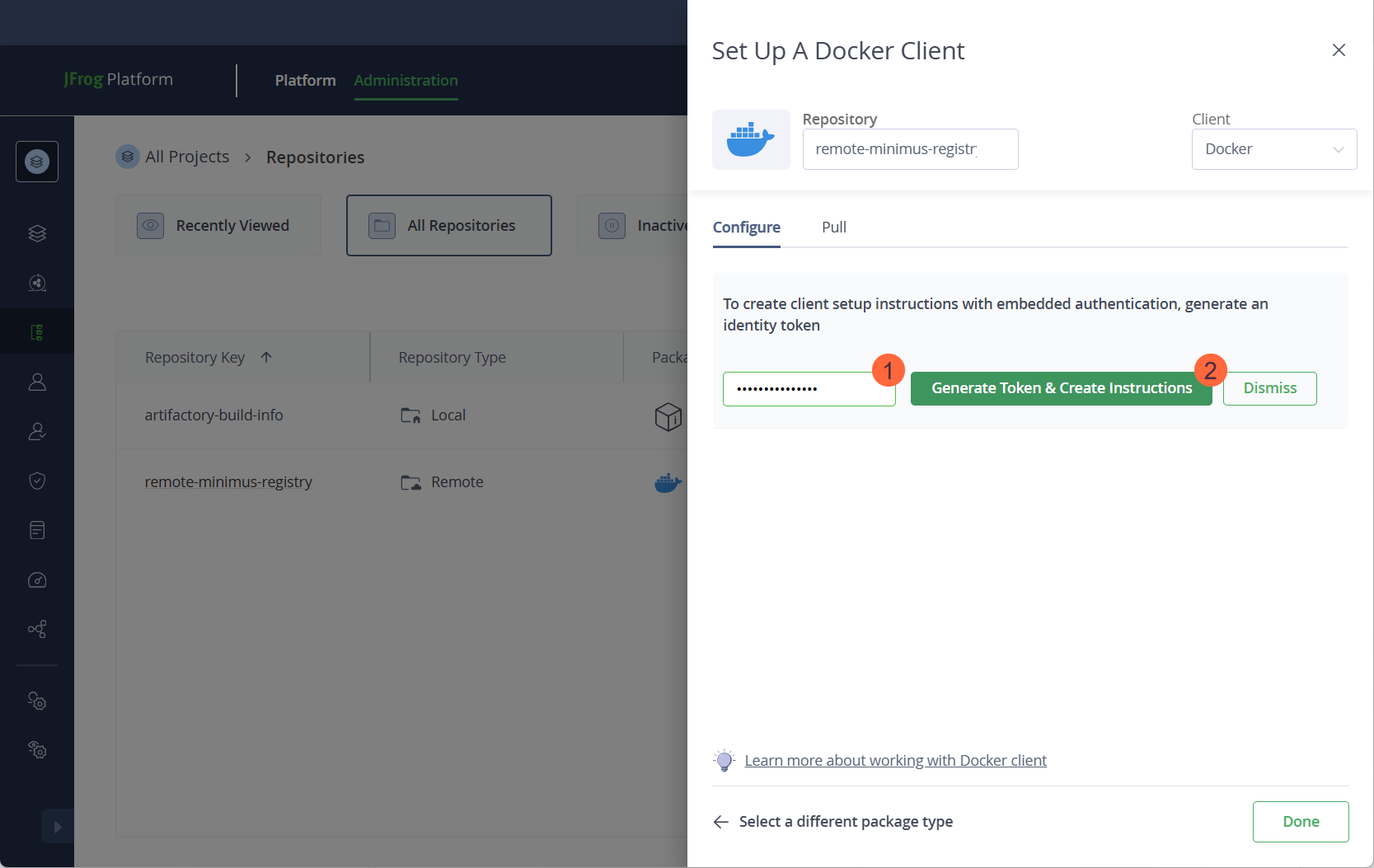
 2. Authenticate to the remote registry.
1. Enter your Artifactory tenant password.
2. Select **Generate Token & Create Instructions**.
2. Authenticate to the remote registry.
1. Enter your Artifactory tenant password.
2. Select **Generate Token & Create Instructions**.
 3. The instructions and commands will be provided in the JFrog UI.
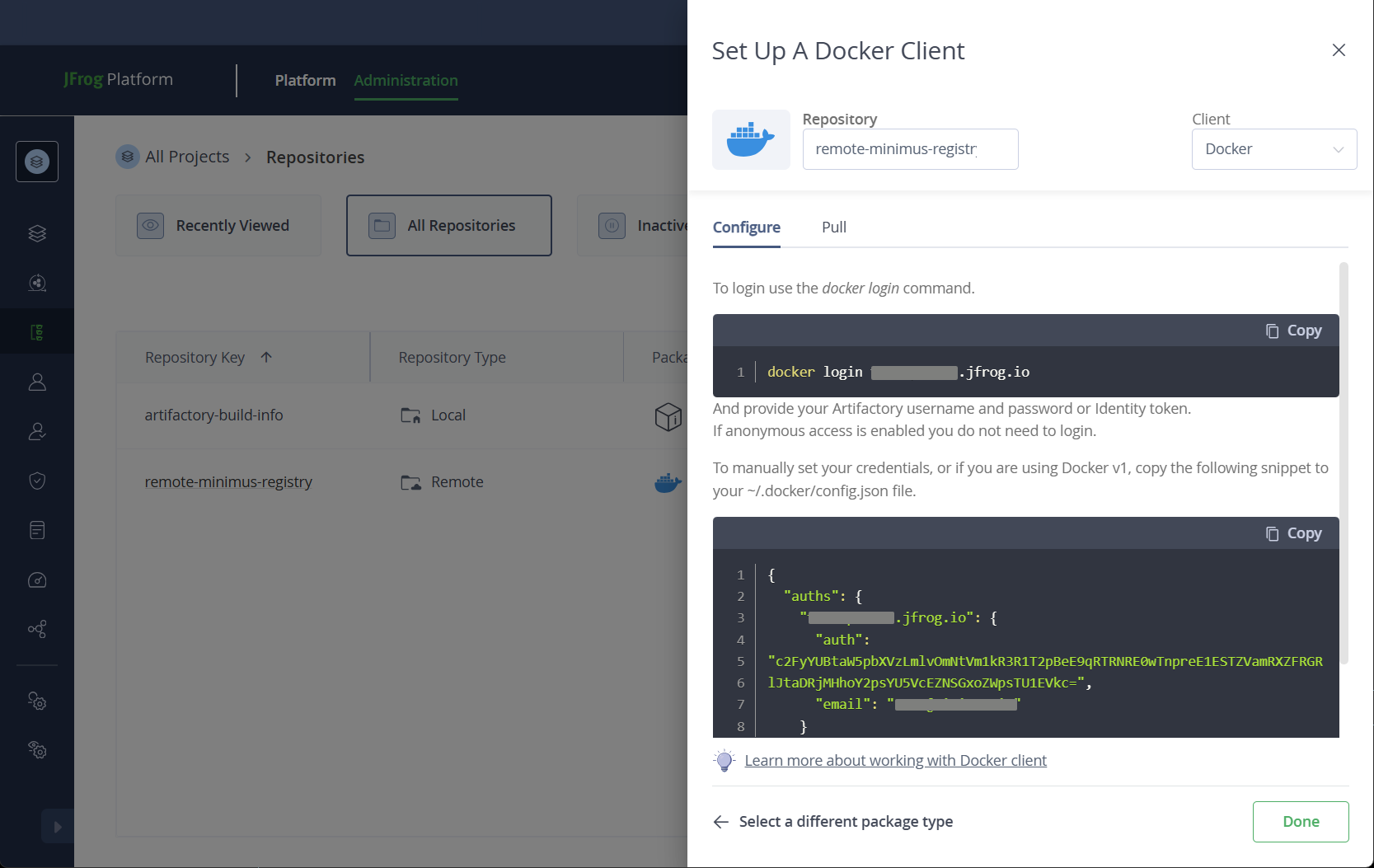 4. In your CLI, log in to your JFrog instance, for example:
```shellscript theme={null}
docker login example123456789.jfrog.io
Username: example@minimus.io
Password:
WARNING! Your credentials are stored unencrypted in '/home/example/.docker/config.json'.
Configure a credential helper to remove this warning. See
https://docs.docker.com/go/credential-store/
Login Succeeded
```
5. Execute a Docker or Podman pull command:
```shellscript Docker Pull Command theme={null}
#docker command format
docker pull {your artifactory instance}/{remote repository name}/{IMAGE}:{TAG}
#example
docker pull example123456789.jfrog.io/remote-minimus-registry/python:latest
```
```shellscript Podman Pull Command theme={null}
#podman command format
podman pull {your artifactory instance}/{remote repository name}/{IMAGE}:{TAG}
#example
podman pull example123456789.jfrog.io/remote-minimus-registry/python:latest
```
6. That's it! You have validated that you can pull a Minimus image into your JFrog Artifactory repository.
## Troubleshooting
### Artifactory remote repository sync
When setting up a self-hosted registry with JFrog Artifactory, you may encounter a 401 or 403 error response when testing the connection in the Artifactory UI.
**Explanation**: This is a known UI issue reported by JFrog and it can be safely ignored. The sync functionality will work correctly, and you will be able to pull images from the Minimus registry into your own registry without any problems. [Refer to the original report by JFrog for more details](https://jfrog.com/help/r/artifactory-what-it-looks-like-a-ghcr-io-repository-in-artifactory/artifactory-what-it-looks-like-a-ghcr.io-repository-in-artifactory)
4. In your CLI, log in to your JFrog instance, for example:
```shellscript theme={null}
docker login example123456789.jfrog.io
Username: example@minimus.io
Password:
WARNING! Your credentials are stored unencrypted in '/home/example/.docker/config.json'.
Configure a credential helper to remove this warning. See
https://docs.docker.com/go/credential-store/
Login Succeeded
```
5. Execute a Docker or Podman pull command:
```shellscript Docker Pull Command theme={null}
#docker command format
docker pull {your artifactory instance}/{remote repository name}/{IMAGE}:{TAG}
#example
docker pull example123456789.jfrog.io/remote-minimus-registry/python:latest
```
```shellscript Podman Pull Command theme={null}
#podman command format
podman pull {your artifactory instance}/{remote repository name}/{IMAGE}:{TAG}
#example
podman pull example123456789.jfrog.io/remote-minimus-registry/python:latest
```
6. That's it! You have validated that you can pull a Minimus image into your JFrog Artifactory repository.
## Troubleshooting
### Artifactory remote repository sync
When setting up a self-hosted registry with JFrog Artifactory, you may encounter a 401 or 403 error response when testing the connection in the Artifactory UI.
**Explanation**: This is a known UI issue reported by JFrog and it can be safely ignored. The sync functionality will work correctly, and you will be able to pull images from the Minimus registry into your own registry without any problems. [Refer to the original report by JFrog for more details](https://jfrog.com/help/r/artifactory-what-it-looks-like-a-ghcr-io-repository-in-artifactory/artifactory-what-it-looks-like-a-ghcr.io-repository-in-artifactory)