

File bundles are used to include public keys for internal PKIs (Public Key Infrastructure certificates) and override configuration files. File bundles are always centrally managed and automatically versioned.Documentation Index
Fetch the complete documentation index at: https://docs.minimus.io/llms.txt
Use this file to discover all available pages before exploring further.
Upload new bundle
There are two ways to upload a new file bundle:- You can add a new file bundle directly to the file repository when you are not actively creating or editing a private image.
- You can upload a new file bundle directly to a private image as part of the Creator flow. The file bundle will be added to the central file repository automatically and will be available for selection for other private images as well.
Upload from file repository
- Select Creator in the main menu.
-
Select the option to Manage Files.
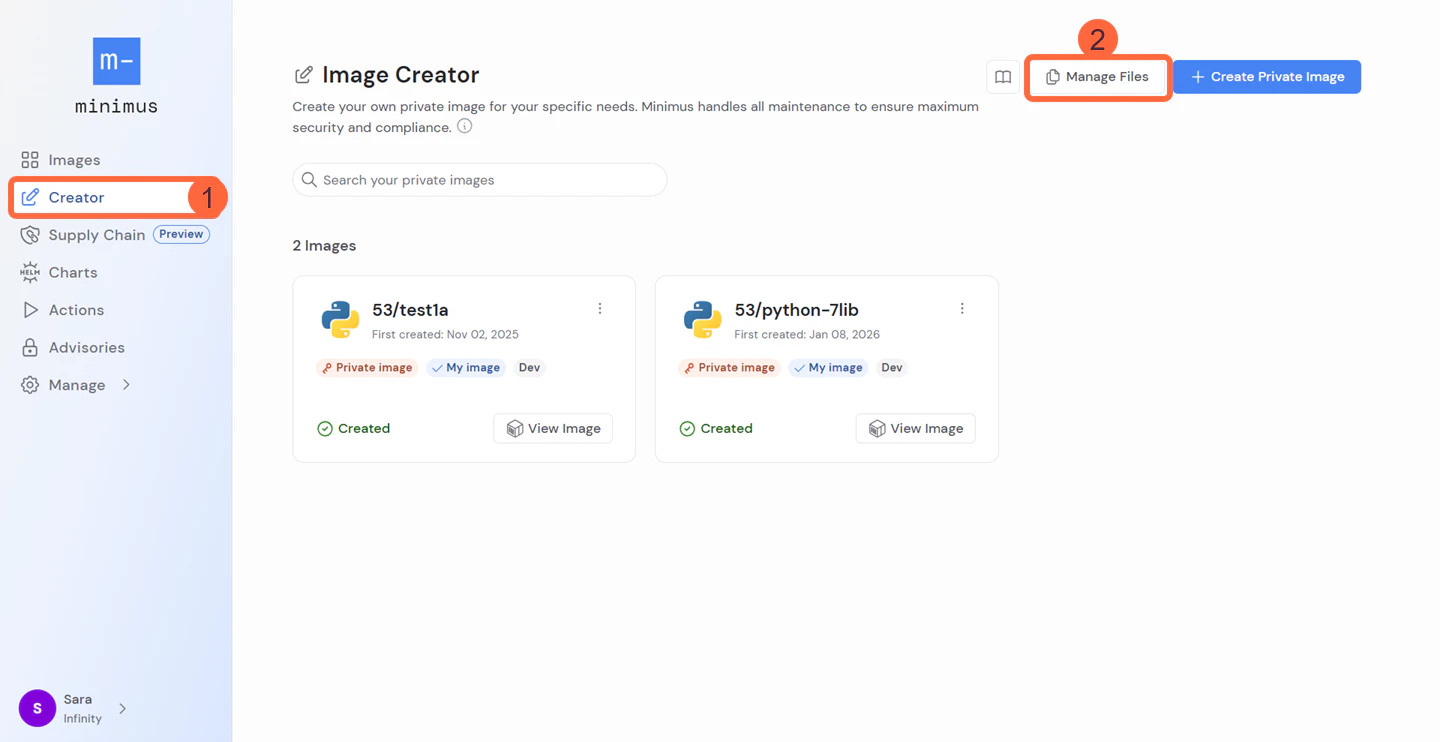
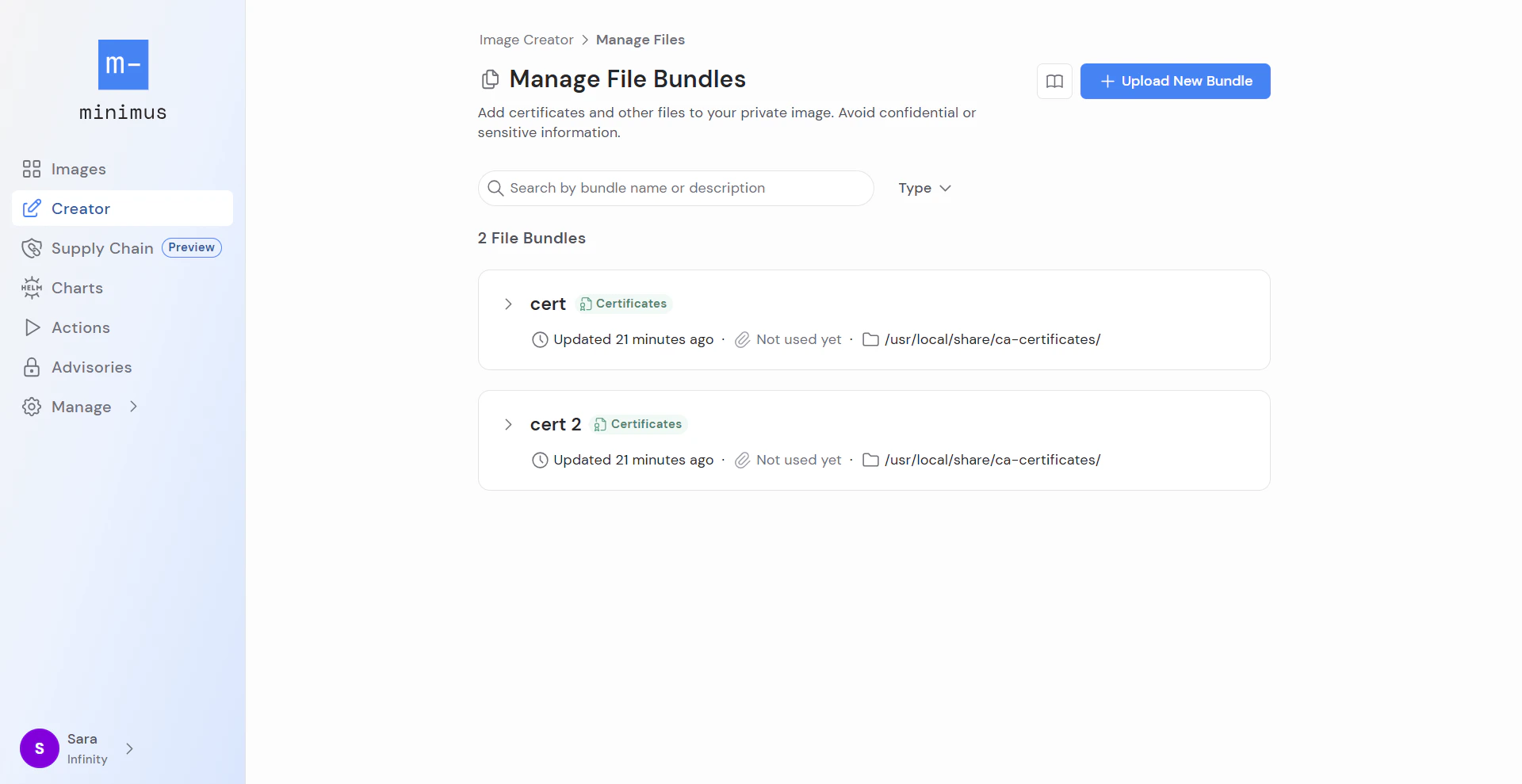
- The file repository will be listed with your existing file bundles. You can search the list by bundle name or description and filter by bundle type: certificates or other.
- Select the option to upload new bundle.
-
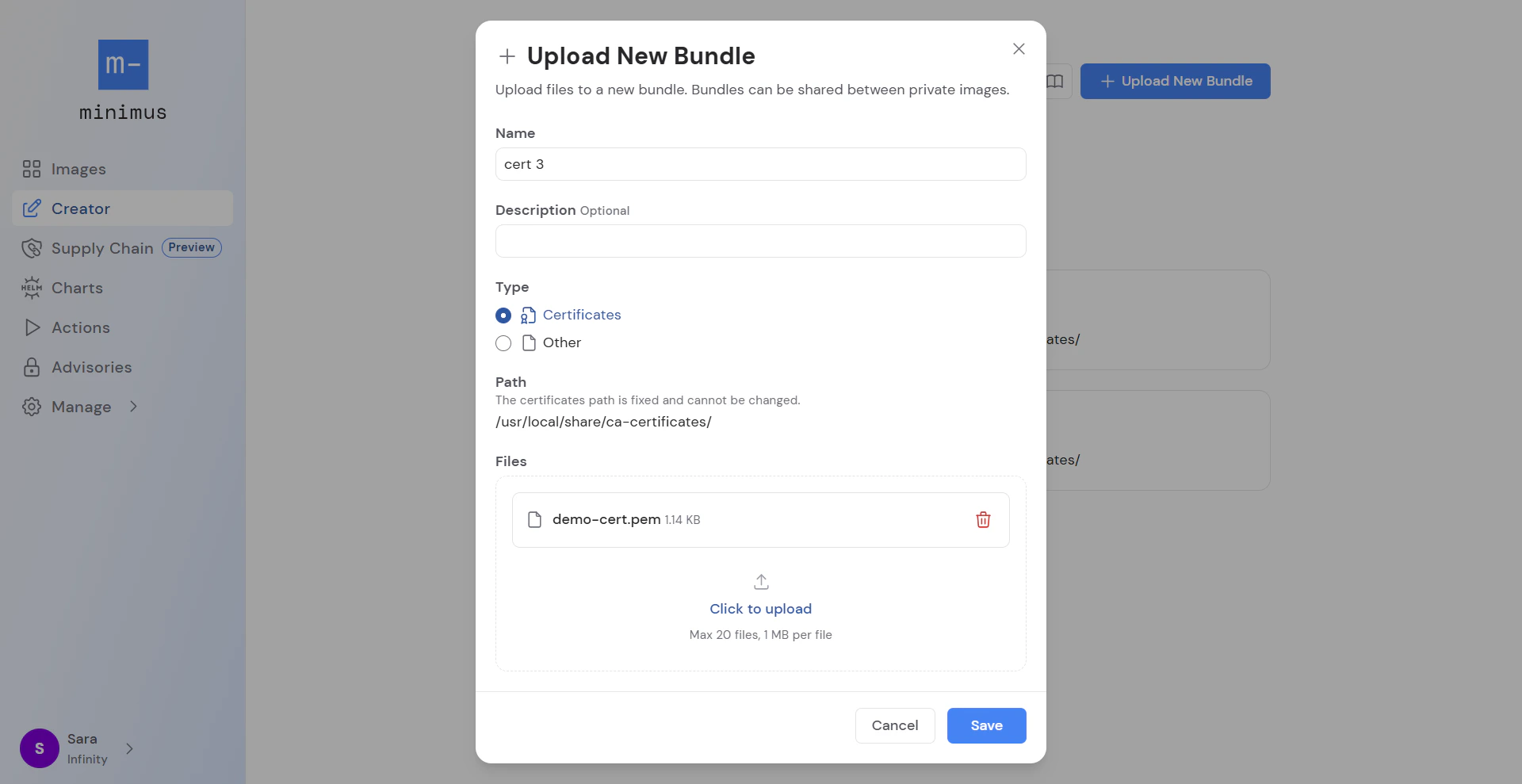
Fill out the form:
- Provide a name and description (The description is optional but recommended for search purposes).
- Select the bundle type and path: Certificates or Other.
-
If you select Certificates, the folder path is hardcoded:
/usr/local/share/ca-certificates/ -
If you select Other, the folder path is configurable. Specify an absolute Linux path starting with
/and without backslashes (\).
-
Upload valid files.
- A maximum of 20 files can be uploaded per file bundle.
- File size is limited to 1 MB per file.
- Save your changes. The new file bundle will be added to the list in your file repository.
Upload directly to private image
- Select Creator in the main menu.
- Select the option to Create private image.
- Follow the wizard to the fourth step - Upload files.
- Select Add File Bundle > Upload New.
- Continue from step 5 above to fill out the form.
Upload certificates
- In Creator, select the base image and follow the wizard to the relevant step - upload files. Select Add File Bundle > Upload New.
- Fill out the form:
- Provide a name and description for the custom configuration file. Adding a description is recommended as it is visible in the file bundle summary page.
- Select Type: Certificates.
- The file path is hardcoded and cannot be changed.
- Upload the certificate files.
- Save your changes.
Override configuration file
-
Before you begin, look up the default path to the configuration file in the base image. It may be listed in the specification tab in the Minimus console or you may need to run
docker inspecton the image. - Save your custom configuration file and name it, preferably with a name that will help teammates understand its purpose.
- In Creator, select the base image and follow the wizard to the relevant step - upload files. Select Add File Bundle > Upload New.
-
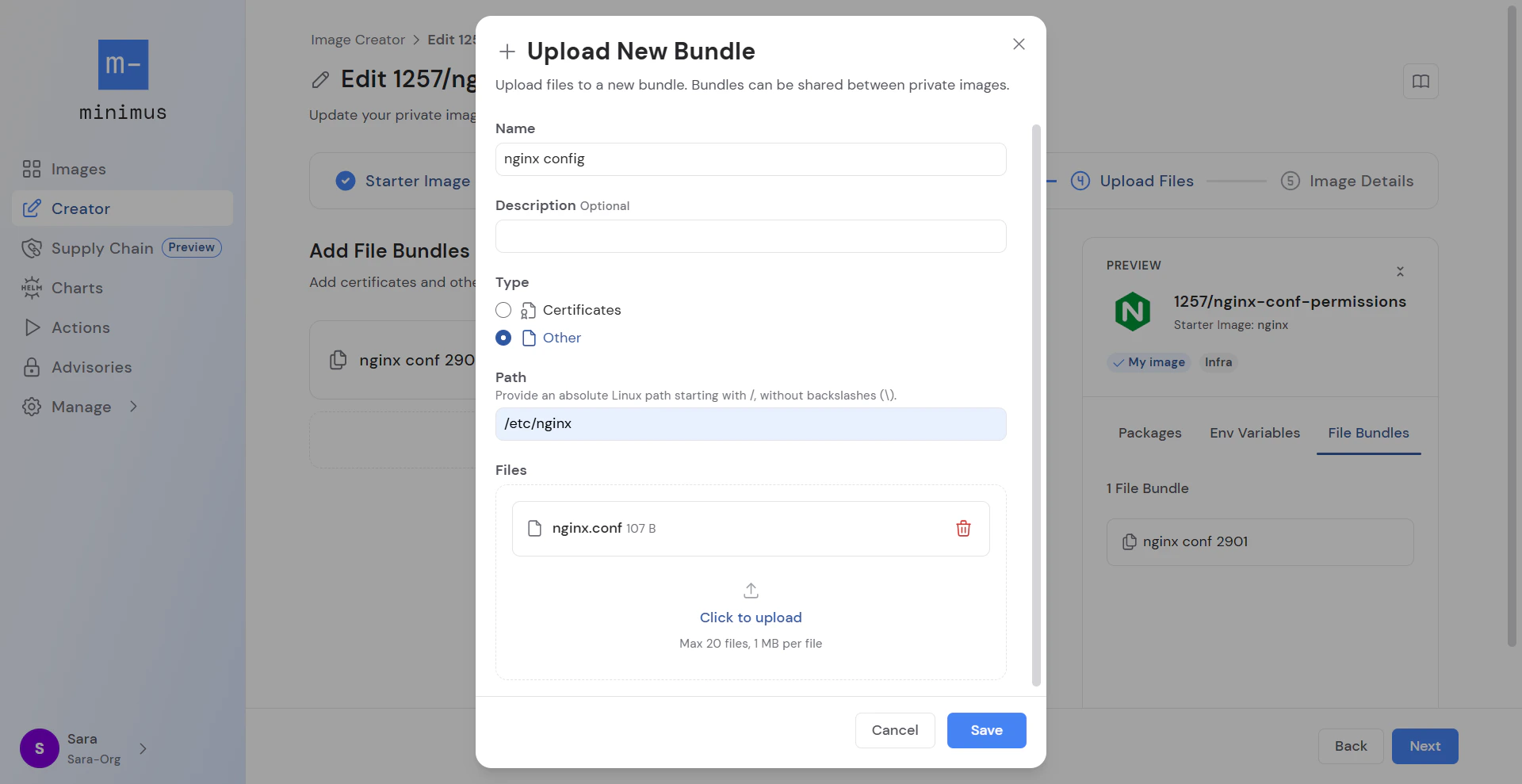
Fill out the form:
- Provide a name and description for the custom configuration file. Adding a description is recommended as it is visible in the file bundle summary page.
- Select Type: Other.
- Provide the exact path you would mount the config file onto. For example in nginx, the path would be
/etc/nginx. See also our nginx tutorial - Upload the file.
- Save your changes.
Edit file bundle
Go to your file repository, hover over a file bundle card to select the edit option.- Once the bundle is updated, Minimus will automatically build new versions of all private images that include the file bundle.
- Visit the image changelog to view the new image digest in context.
Remove or delete file bundle
- To remove a file bundle from a private image, go to Creator to edit the private image. Once saved, the private image will be rebuilt with the relevant changes.
- To delete a file bundle from the file repository, first remove it from all private images. A file bundle cannot be deleted as long as it is referenced by a private image.
Limitations
- The maximum number of file bundles allowed by the file repository is 50.
- The maximum number of file bundles allowed per private image is 10.
- The maximum number of files per bundle is 20.
- The maximum file size is 1 MB per file.