Centrally manage file bundles and certificates for your private images in Minimus
File bundles are used to include public keys for internal PKIs (Public Key Infrastructure certificates) and override configuration files. File bundles are always centrally managed and automatically versioned.
If certificates are included, they are implicitly trusted by the image without any need to perform any additional actions after pulling the image.
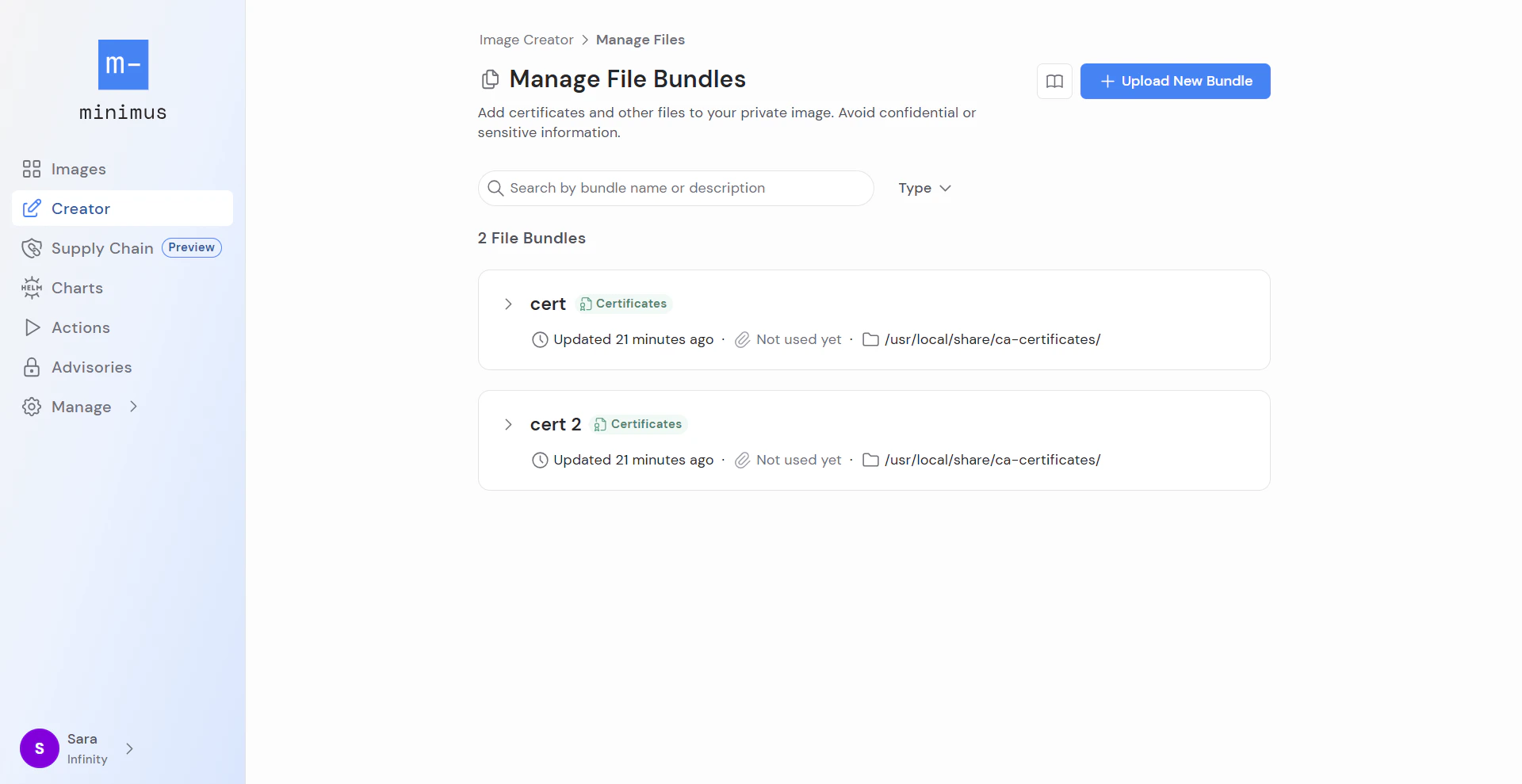
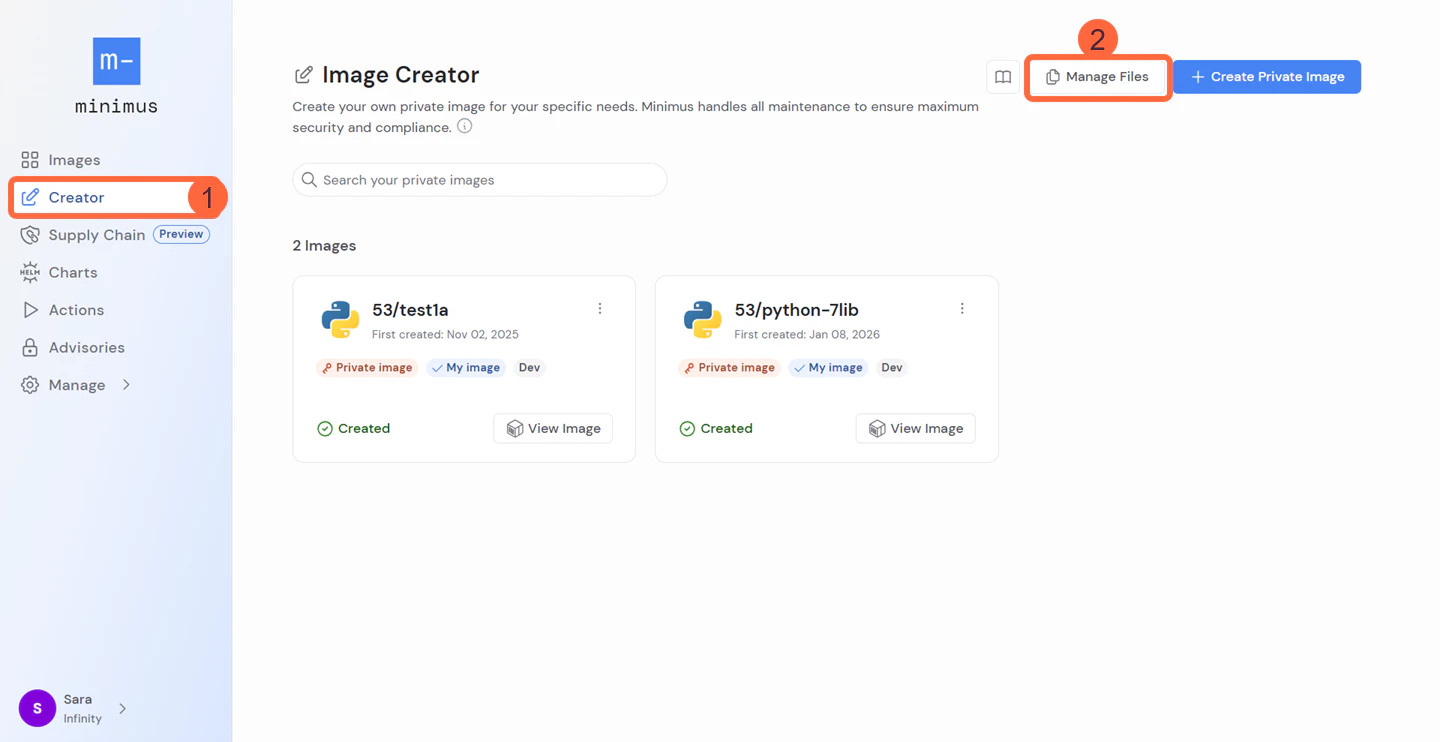
You can add a new file bundle directly to the file repository when you are not actively creating or editing a private image.
You can upload a new file bundle directly to a private image as part of the Creator flow. The file bundle will be added to the central file repository automatically and will be available for selection for other private images as well.
The file repository will be listed with your existing file bundles.You can search the list by bundle name or description and filter by bundle type: certificates or other.
Select the option to upload new bundle.
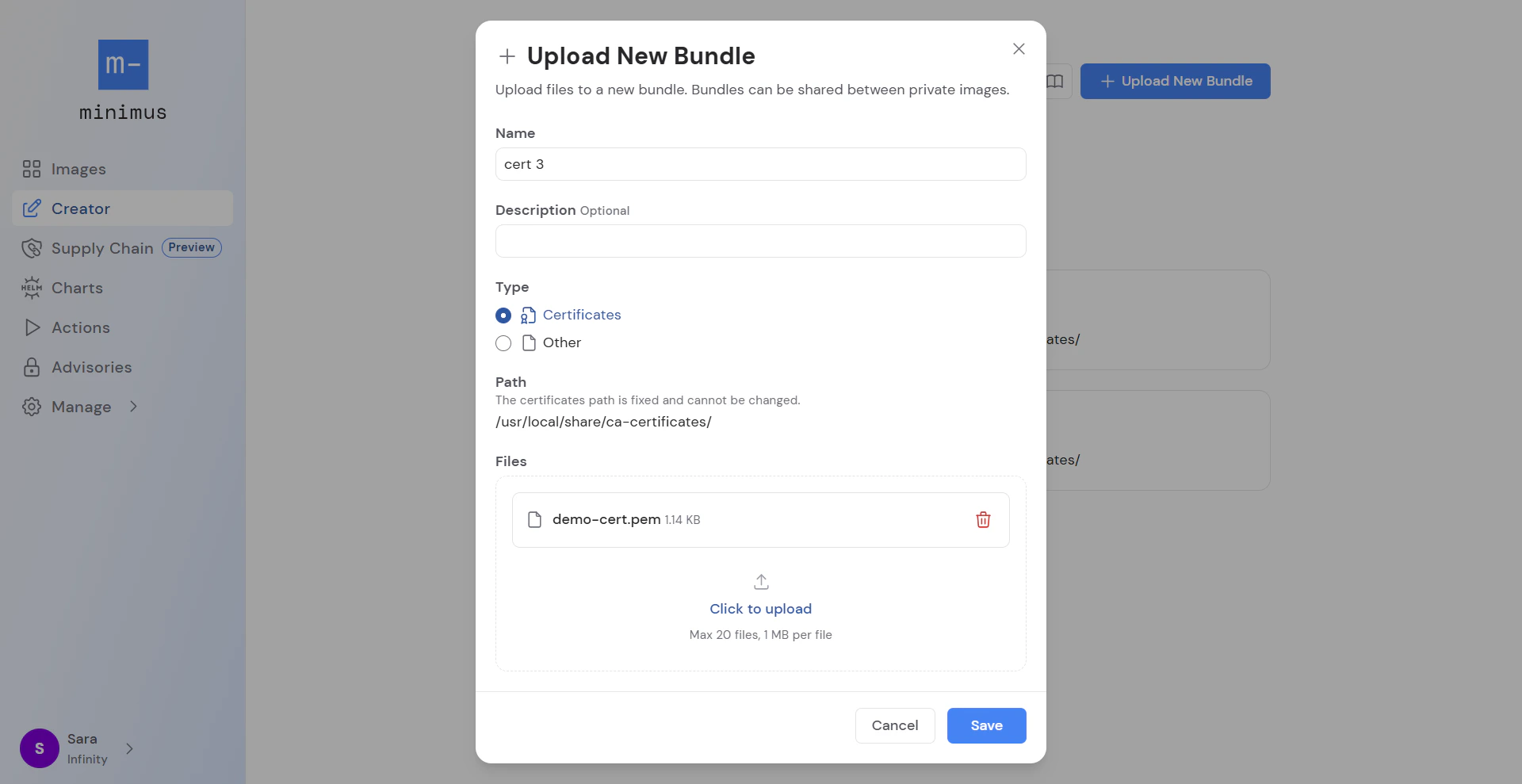
Fill out the form:
Provide a name and description (The description is optional but recommended for search purposes).
Select the bundle type and path: Certificates or Other.
Note that certificates must be uploaded to a file bundle type of Certificates. They cannot be uploaded to the bundle type Other.
If you select Certificates, the folder path is hardcoded: /usr/local/share/ca-certificates/
If you select Other, the folder path is configurable. Specify an absolute Linux path starting with / and without backslashes (\).
Upload valid files.
A maximum of 20 files can be uploaded per file bundle.
File size is limited to 1 MB per file.
Save your changes. The new file bundle will be added to the list in your file repository.
In Creator, select the base image and follow the wizard to the relevant step - upload files. Select Add File Bundle > Upload New.
Fill out the form:
Provide a name and description for the custom configuration file. Adding a description is recommended as it is visible in the file bundle summary page.
Before you begin, look up the default path to the configuration file in the base image. It may be listed in the specification tab in the Minimus console or you may need to run docker inspect on the image.
Save your custom configuration file and name it, preferably with a name that will help teammates understand its purpose.
Validate that the files you plan to upload are not executable: chmod -x path/to/file
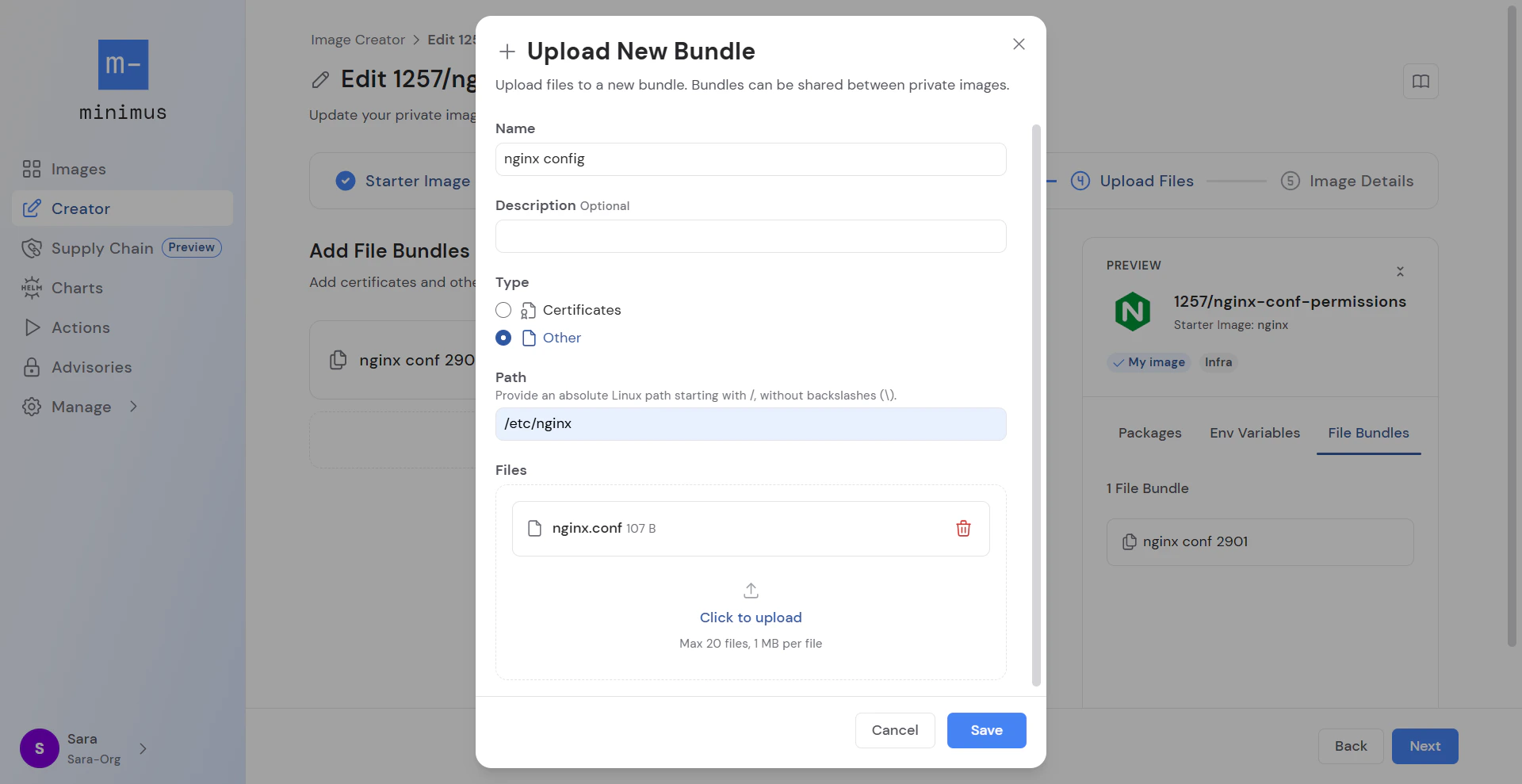
In Creator, select the base image and follow the wizard to the relevant step - upload files. Select Add File Bundle > Upload New.
Fill out the form:
Provide a name and description for the custom configuration file. Adding a description is recommended as it is visible in the file bundle summary page.
Select Type: Other.
Provide the exact path you would mount the config file onto. For example in nginx, the path would be /etc/nginx. See also our nginx tutorial
To remove a file bundle from a private image, go to Creator to edit the private image. Once saved, the private image will be rebuilt with the relevant changes.
To delete a file bundle from the file repository, first remove it from all private images. A file bundle cannot be deleted as long as it is referenced by a private image.