The Minimus command-line tool minicli allows you to embed your custom-built Minimus images in your CI/CD workflows. To begin, you will need to install minicli locally on your workstation.
To view the minicli installation page, select Manage > minicli (direct link).
- minicli can be installed on macOS or Linux systems.
- Both amd64 and arm64 are supported.
- Choose between direct installation via
curl, wget, or downloading the file and running it locally.
- The relevant installation commands are provided directly in the minicli page (direct link).
Authenticate to minicli
Generate a token from the tokens page in the Minimus console and give it minicli access. Then authenticate using one of the following methods:
Option 1 — environment variable (recommended for CI/CD):
Option 2 — login command (recommended for local use):
All commands require MINICLI_TOKEN to be set. If the token is missing, minicli returns an error:
Working with minicli
Once you have minicli installed and authenticated, you can equip your AI agent with minicli skills and get started. See minicli commands
Troubleshooting
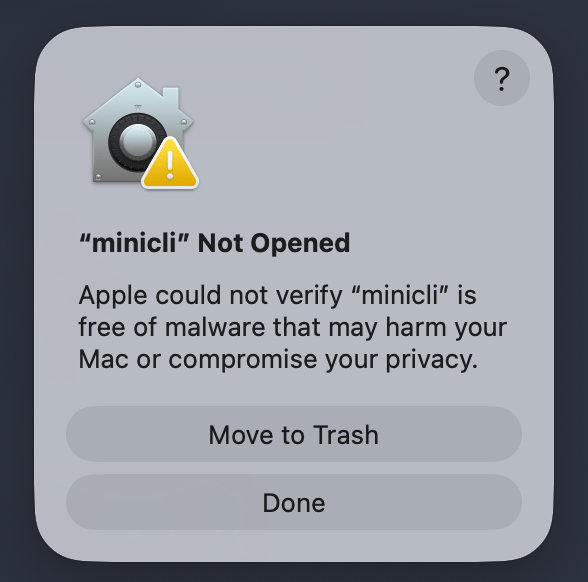
Apple could not verify “minicli” is free of malware
Minimus is in the process of obtaining Apple developer verification. In the meanwhile, the browser download may attach a hidden quarantine flag that triggers a warning that minicli could not be verified if other commands are performed pre-installation.
To fix the problem: Download the minicli installation package and follow the instructions on the minicli installation page in the Minimus console (direct link) without running any other commands in between. For example, avoid chmod +x. Last modified on June 16, 2026