

Prepare the SSO form in Minimus
- Go to Manage > Users & Groups (direct link)
- Click Configure SSO at the top of the page to open the Minimus SSO form.
- The form has 4 parts:
- Configure Minimus as a custom app in your identity provider - You will copy these parameters from Minimus to Keycloak in the next steps.
- SP Entity ID
- Reply URL (Callback / ACS URL)
- Relay State (optional) - If you leave the Relay State blank, users will only be able to log in with SSO from the Minimus homepage.
- Connect Minimus to your identity provider - You will fetch these parameters from your Keycloak client and save them to the Minimus form:
- Login SSO URL
- IdP Entity ID
- Certificate
- SAML Attribute Mapping - You will fetch the Keycloak claim names for the following parameters and save them to the Minimus form:
- Group Mapping is optional and can be enabled if you plan to configure user groups. See the instructions in user groups.
- Configure Minimus as a custom app in your identity provider - You will copy these parameters from Minimus to Keycloak in the next steps.
Add Minimus as a client in Keycloak
1
Create a Minimus client in Keycloak
Create the Minimus client in Keycloak and link it to your Minimus Console.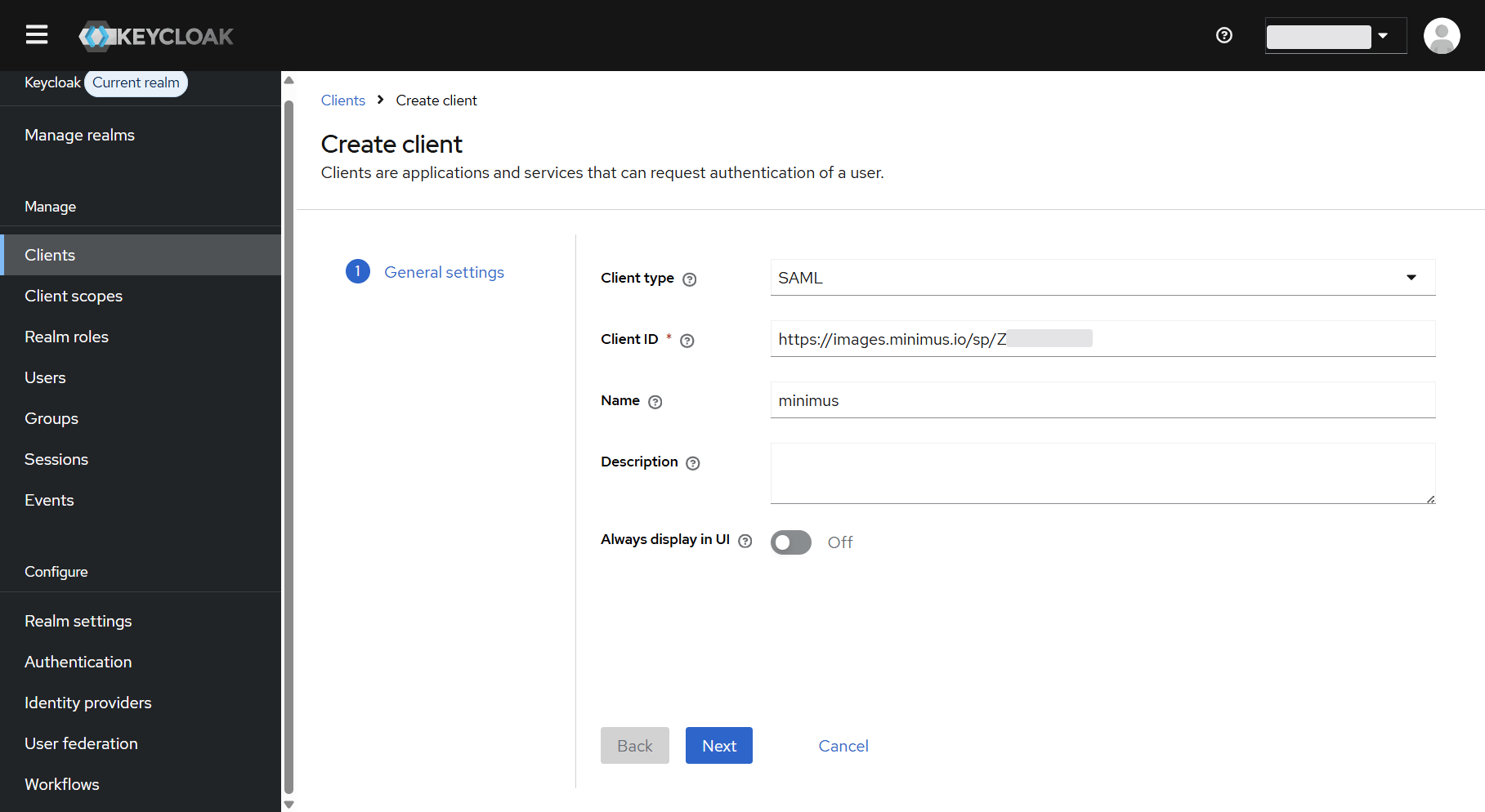
- Visit your Keycloak admin center. (URL example http://address:8080/admin/master/console/)
- Select Clients from the left menu > Select Create client.
- Fill out the form:
- Client type - Change the selection to SAML.
- Client ID - Copy & paste the value from Minimus SP Entity ID (link to your Minimus form).
- Name the client and add a description (optional).
- Select Next to proceed.
How to create a new SAML client in Keycloak
2
Configure the client
Configure the client: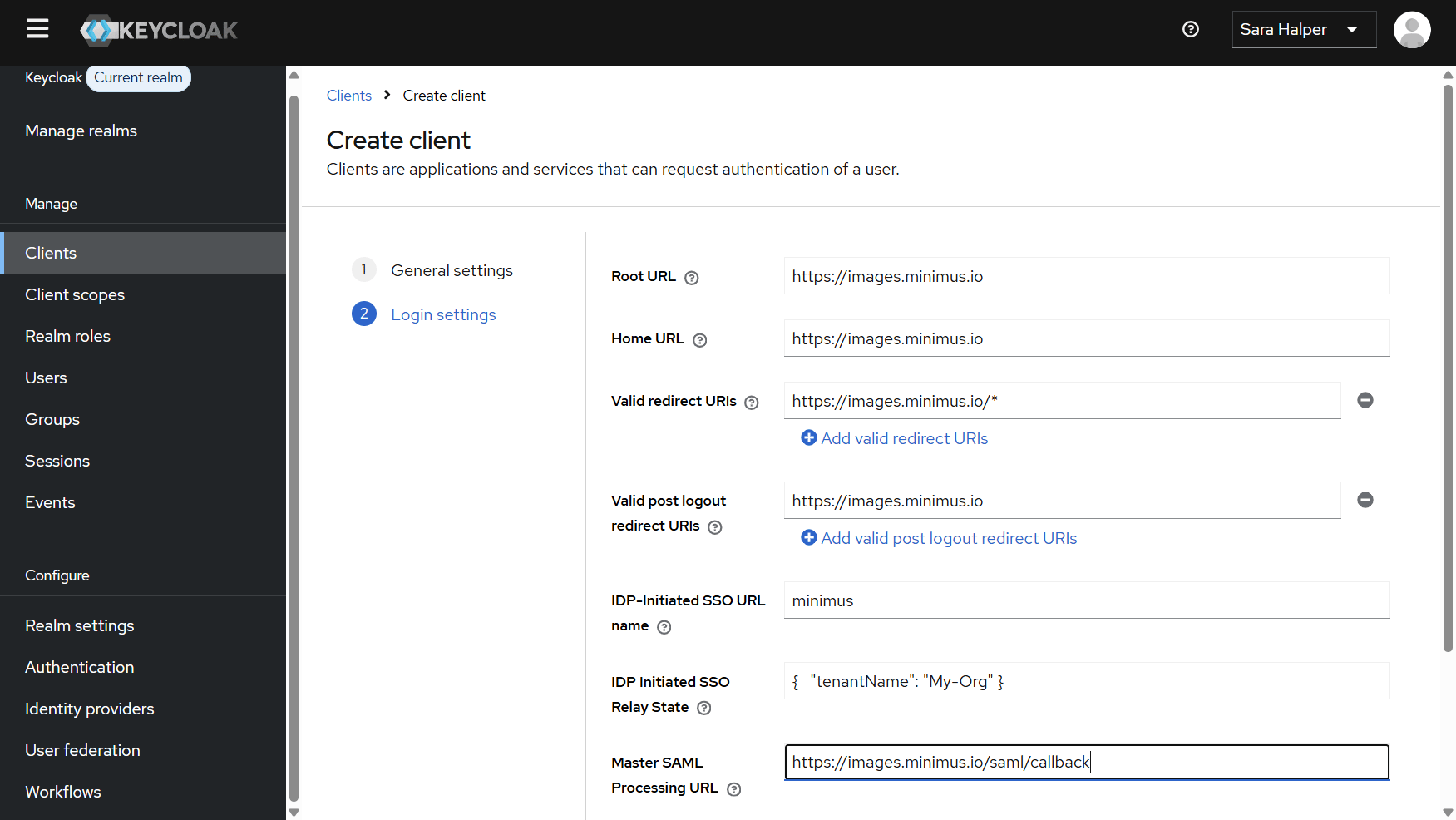
- Set the following as
https://images.minimus.io:- Root URL
- Home URL
- Valid post logout redirect URIs
- Valid Redirect URI - Set it to
https://images.minimus.io/* - IDP-Initiated SSO URL Name - Set the name as
minimus - IDP Initiated SSO Relay State - for example:
- Master SAML Processing URL - Set it as
https://images.minimus.io/saml/callback - Save your changes.
How to configure your new SAML client in Keycloak
3
Configure SAML capabilities
Scroll down to the section SAML capabilities and set the following: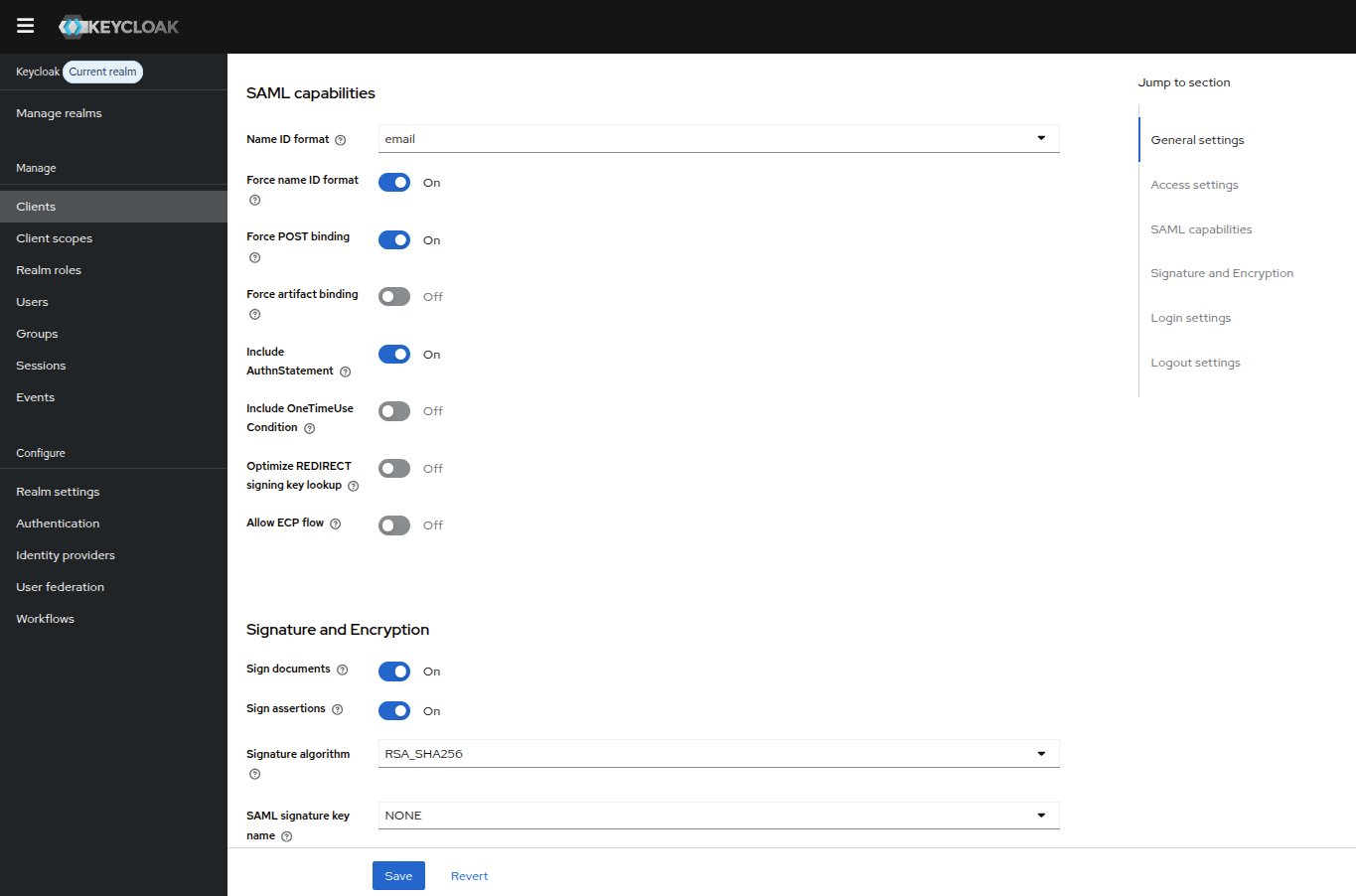
- Name ID format - Select email from the dropdown list
- Force name ID format - ON
- Force POST binding - ON
- Sign documents - ON
- Sign assertions - ON
How to configure SAML capabilities in Keycloak client
4
Disable client signature requirement
- Navigate to the Keys tab
- The section is named Signing keys config
- Disable Client signature required. You will be asked to confirm your change
- Save your changes
5
Configure an email mapper
- Navigate to the Client scopes tab in the top bar.
- Select your Client ID in the table
- Select Configure a new mapper
- Select User Property
- Fill in the mapper attributes:
- Name -
email - Property - Select
emailfrom the dropdown list - Friendly Name - Optional field
- SAML Attribute Name - Paste in
http://schemas.xmlsoap.org/ws/2005/05/identity/claims/emailaddress - SAML Attribute NameFormat - Basic
- Name -
- Save your changes
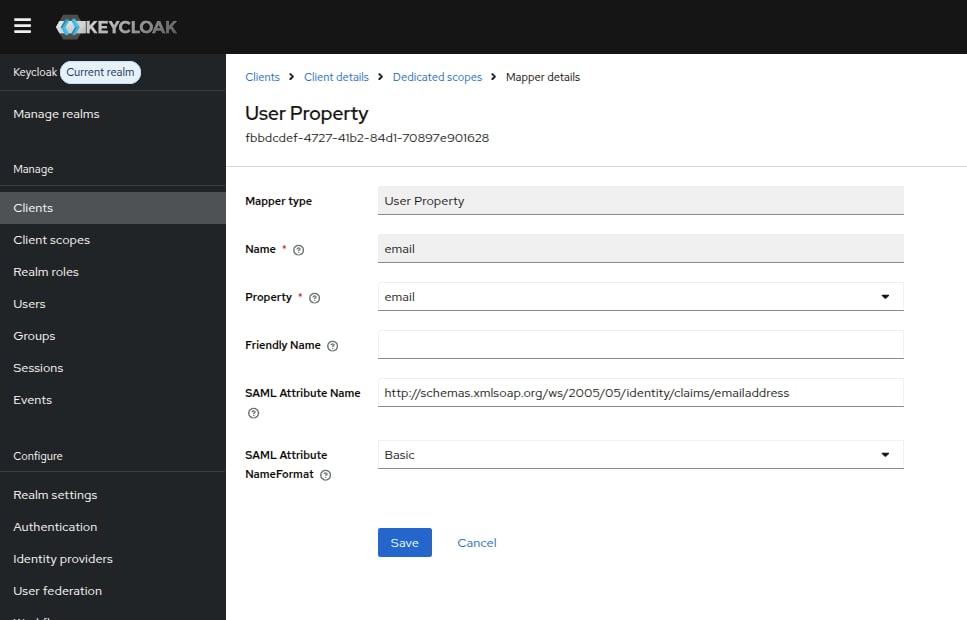
How to configure the email user property in a new Keycloak client
6
Configure a second mapper
- In the mappers table, select Add mapper > By configuration
- Select User Property
- Fill in the mapper attributes:
- Name - Type in
fullName - Property - Select
firstNamefrom the dropdown list - SAML Attribute Name -
http://schemas.xmlsoap.org/ws/2005/05/identity/claims/name - SAML Attribute NameFormat - Basic
- Name - Type in
- Save your changes
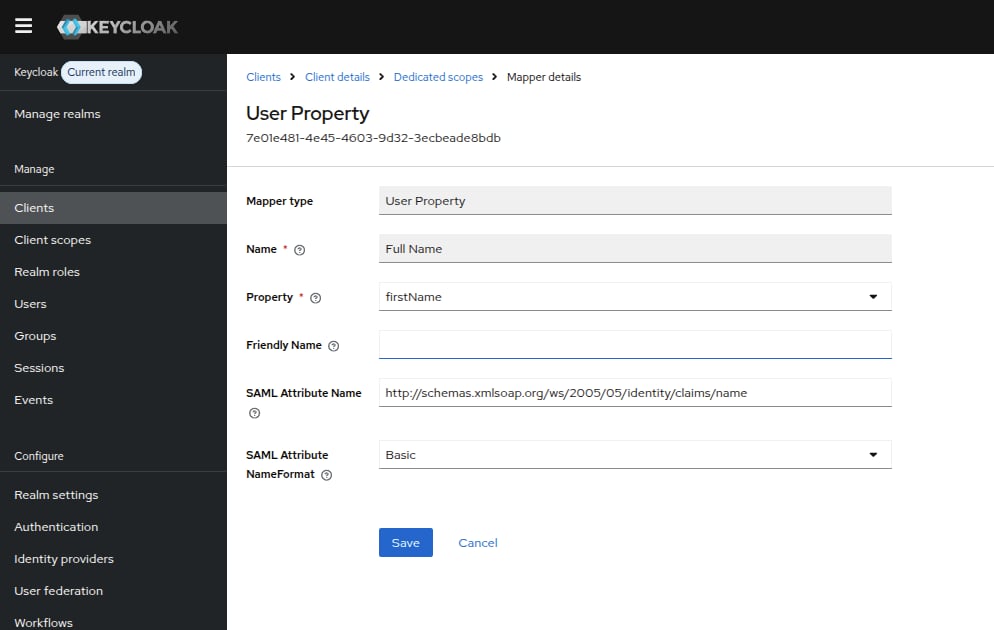
How to configure the fullName user property in a new Keycloak client
7
Copy the certificate
- In the left menu, select Realm settings.
- In the General tab, select SAML 2.0 Identity Provider Metadata.
- Copy the certificate between
<ds:X509Certificate>and</ds:X509Certificate>.
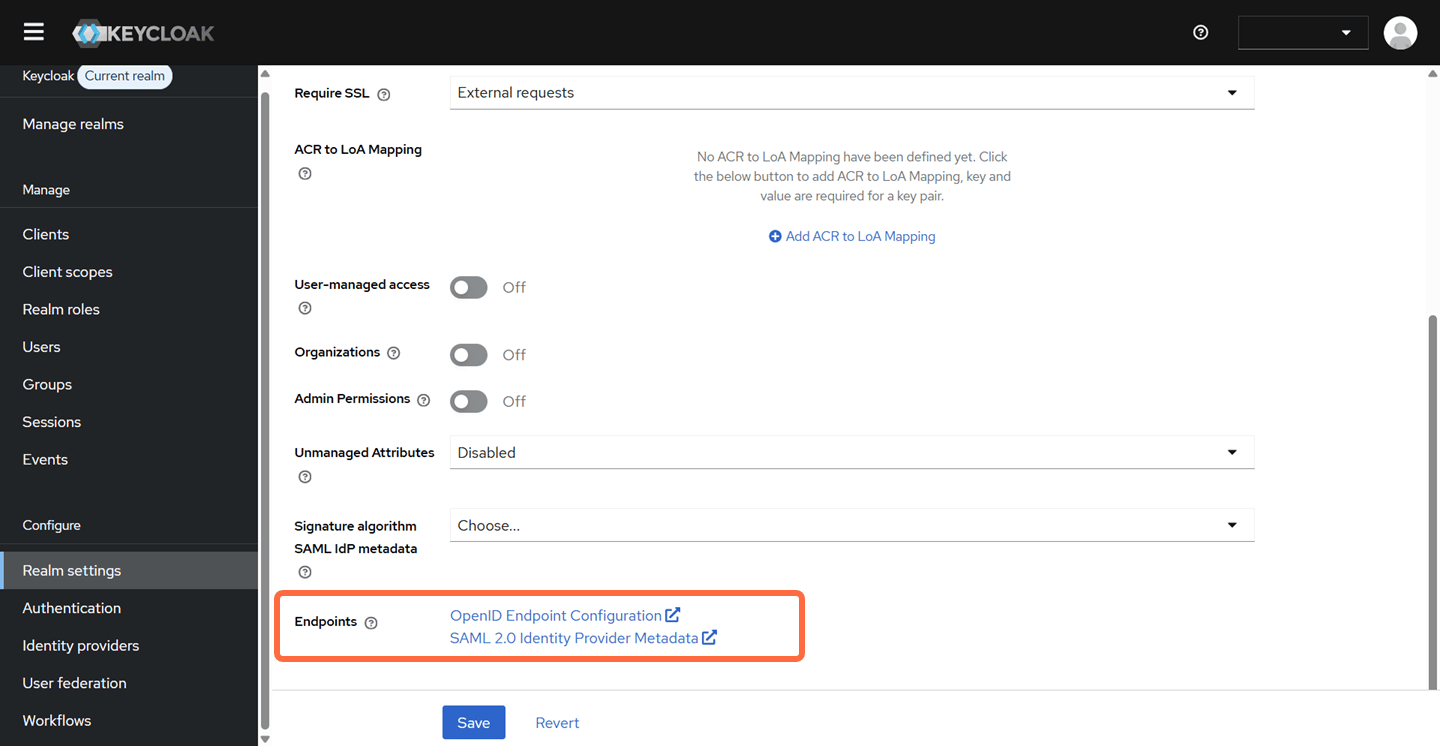
How to locate the Keycloak certificate in Keycloak Realm settings
8
Configure SAML in Minimus
- In your Minimus console, go to Manage > Users & Groups > Configure SSO.
- Fill the following fields:
- IdP Entity ID -
https://YOUR_KEYCLOAK_EXTERNAL_IP_OR_URL/realms/master - Login URL -
https://YOUR_KEYCLOAK_EXTERNAL_IP_OR_URL/realms/master/protocol/saml - Certificate - Paste the certificate you copied in the previous step.
- IdP Entity ID -
- Fill in the SAML Attribute Mapping fields:
- Email -
http://schemas.xmlsoap.org/ws/2005/05/identity/claims/emailaddress - Full Name -
http://schemas.xmlsoap.org/ws/2005/05/identity/claims/name - Group Mapping -
groups
- Email -
- Save your changes.